 SMaRT AFIX
1.17.4
AFIX User/AFIX Coordinator User Guide SMaRT AFIX
1.17.4
AFIX User/AFIX Coordinator User Guide |
AFIX Export
AFIX Coordinators can report AFIX assessment results to the CDC AFIX
online tool by using the links in the AFIX
Export category on the menu. The available menu links in this category
are:
- Childhood - Allows users to generate an export
file for the childhood assessment data. See Childhood
AFIX Export
- Adolescent - Allows users to generate an
export files for the adolescent assessment data. See Adolescent AFIX Export
- Childhood & Adolescent - Allows users
to generate an export file for both the childhood and the adolescent
assessment data, together.
Note that when the CDC AFIX Online Tool is unavailable, users should
review the information on the page (and double-check the facility name
at the top of the list), then print/save a PDF version of the summary
for reference when reporting the results to the CDC's AFIX Online Tool.
Import to the CDC's AFIX Online Tool
At the bottom of each AFIX Export page (the Childhood AFIX Export, Adolescent
AFIX Export, and Childhood and Adolescent AFIX Export pages) is the I acknowledge that this page is complete,
and all responses are final checkbox and the Export icon ().
Selecting the checkbox and clicking the Export icon creates the XML export
file and downloads it directly to your computer, where it needs to be
when it is time to upload the file and import it using the CDC AFIX online
tool.
To import this file using the CDC's AFIX online tool, follow these steps:
- Use your browser to open the CDC's AFIX online
tool's login page.
- Using the login credentials given to you, log
in to the AFIX Site Visit Tool.
- Click the General Site Visit Info tab and enter
your provider information.

- Click the Assessment Results tab to open that
page.

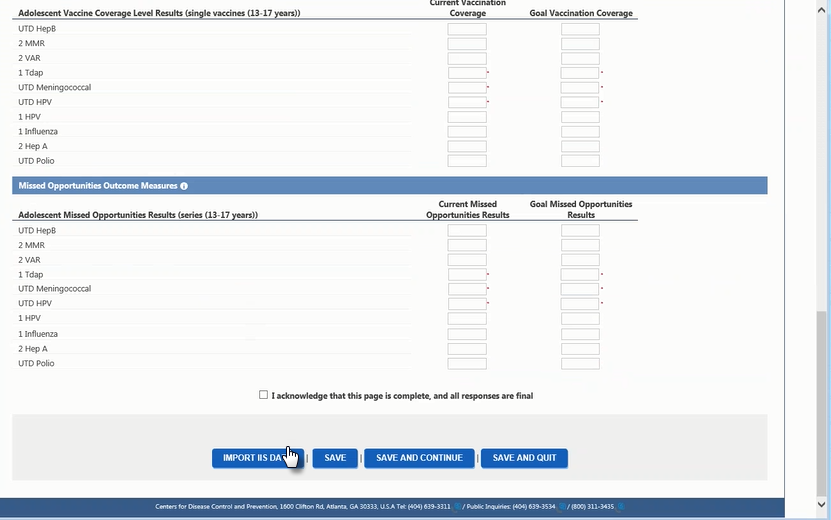
- Click the Import IIS Data button at the bottom
of the page.
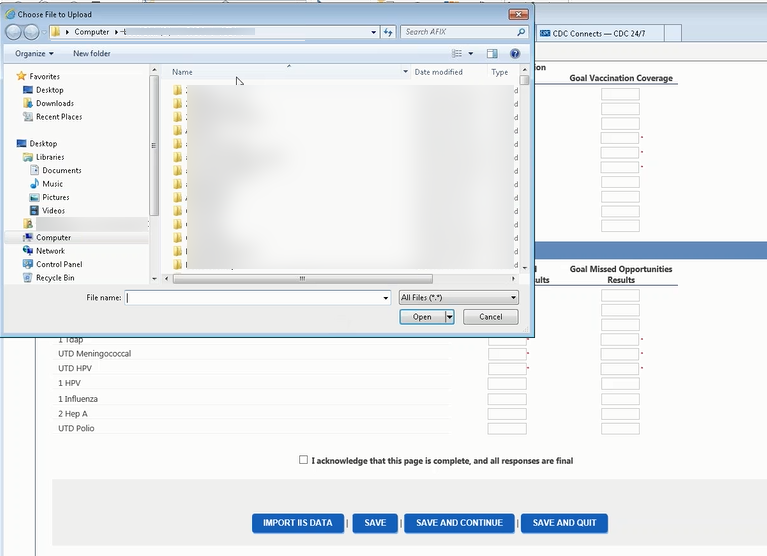
- The tool prompts you to locate the XML file
exported by the application. Select the export file and click Open.
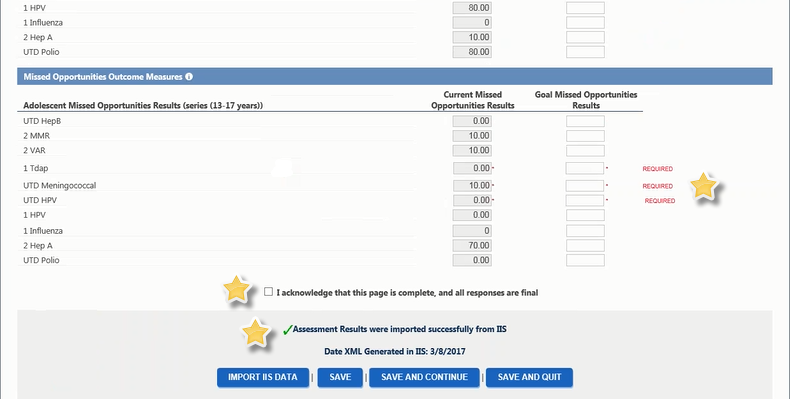
- If the import was successful, a verification
message appears on the page with a green checkmark and the assessment
results display in the first column. Manually enter the goal data
in the second column fields, confirm the accuracy and completeness
of the entire data on the page, and click Save
and Continue.
- Enter the data on the remaining tabs per CDC
and state policies and procedures.
- Save the data.
Related
topics: